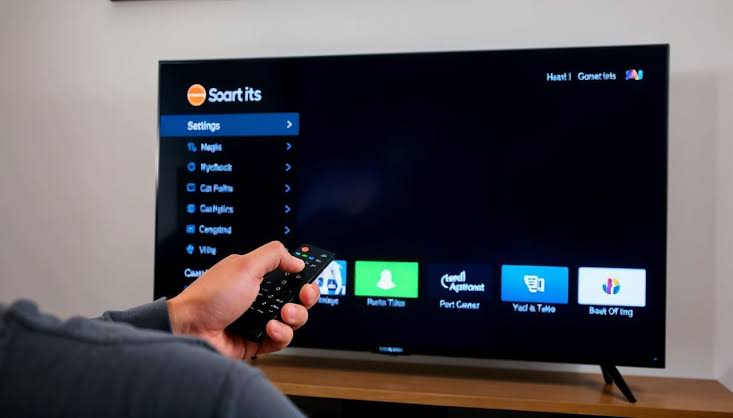
Changing the language during a live broadcast sounds simple until the TV menu, subtitle menu, audio track, app language, and broadcast language all behave differently. That is why many viewers search how to change language on live tv after hearing the wrong audio, seeing captions in another language, or changing the TV menu but noticing the show still sounds the same.
The important thing is knowing which language problem you are trying to fix. Menu language changes the words on the TV interface. Audio language changes what you hear. Subtitle or caption language changes the text on screen. App language changes the streaming app interface. These settings may sit in different places.
For Global Livestream Sound of Text, this article belongs in the Languages category because live TV language settings often depend on country, broadcast source, device model, and available language tracks. The right fix is not always one universal button.
Language Settings Are Not All The Same
Many viewers get stuck because they change the wrong setting. They open the TV language menu, switch it to English, and expect the live channel audio to change. But the TV menu language and the live broadcast audio language are usually separate.
Menu Language Only Changes The Interface
Menu language controls the words inside the TV system: Settings, Home, Inputs, Apps, Accessibility, Search, and other interface labels.
Samsung’s support page for menu language explains that changing the menu language on a Samsung TV is done through Settings, General, and Language, but it also notes that this only changes the menu interface language, not the audio or subtitle language of the content.
This means changing the menu language may make the TV easier to navigate, but it will not automatically change a live news channel, sports commentary, or streaming event audio.
Audio Language Changes What You Hear
Audio language is the setting you need when the live TV sound is in the wrong language. This may appear as Audio, Audio Track, SAP, Secondary Audio, Alternate Audio, Language, or Broadcast Audio, depending on the TV, app, or provider.
YouTube’s help page for preferred language says that when another audio language is available for a specific video, users can open the video player settings, choose Audio track, and select the preferred language.
The same logic applies across many live players: if the live stream does not include another audio track, the setting may not appear or may not offer the language you want.
Caption Language Changes The Text, Not The Voice
Caption or subtitle language controls the text on screen. It does not change the speaker’s voice.
This matters for live TV because some viewers only need subtitles in another language, while others want the actual audio commentary to change. These are different fixes.
Roku’s support page for preferred language explains that Roku users can go to Settings, Accessibility, and Captions preferred language to choose the preferred caption language.
The Clean Order For Changing Language On Live TV
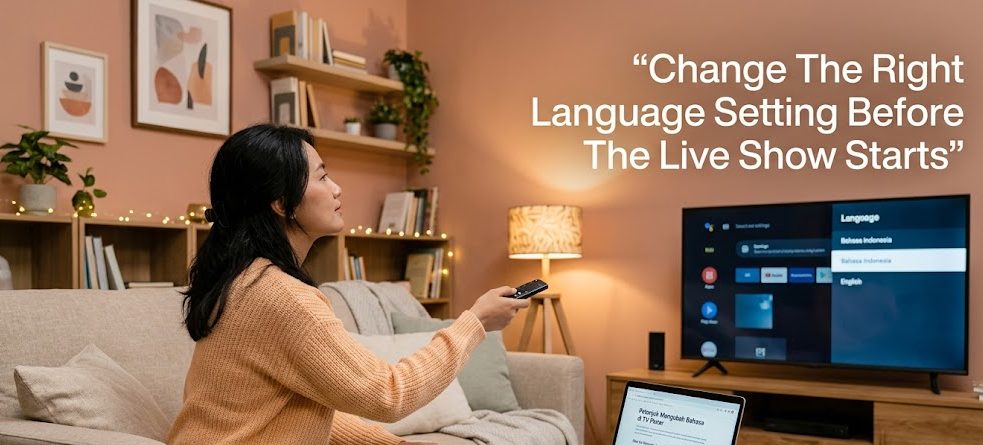
The safest way to fix language problems is to move from the content player first, then the app, then the TV system. This avoids changing system settings when the problem is only inside one channel or one stream.
1. Open The Live TV Player Controls First
Start while the live channel or live stream is playing. Do not begin from the TV home screen if the problem only happens inside one app or channel.
Use the remote to press:
- OK
- Enter
- Down
- Up
- Options
- Star button
- Settings icon
- Audio icon
- CC or subtitle icon
The exact button depends on the device, but the goal is the same: open the live player controls.
Look for menu labels such as:
- Audio
- Audio Track
- Language
- Subtitle
- Captions
- CC
- SAP
- Alternate Audio
- Secondary Audio
If the live TV app supports multiple languages, this is usually where the setting appears.
2. Change The Audio Track If The Voice Is Wrong
Choose the audio language only if your problem is the spoken audio.
For example, if the live channel is playing Spanish commentary and you want English, look for Audio, Audio Track, SAP, or Alternate Audio. Select the available language you want.
If only one audio track appears, the broadcast may not provide another language. In that case, the TV cannot create a new official commentary track by itself.
3. Change Captions If The Text Is Wrong
If the voice is correct but the text is wrong, open the caption or subtitle menu instead.
Choose the available subtitle language. If your preferred language is not listed, the stream may not provide it.
On streaming devices, subtitle settings can exist both inside the app and inside the device system. If the app subtitle setting does not work, check the device accessibility or caption settings next.
4. Change The App Language If The App Interface Is Wrong
If the live TV app menu appears in the wrong language, but the channel audio is fine, the problem may be the app interface.
Open the app settings and look for:
- Language
- Display Language
- App Language
- Region
- Account Language
- Preferences
This will usually change labels, menus, categories, and browsing text inside the app. It may not change live channel audio.
5. Change The TV System Language Last
Use the TV’s system language setting when the whole TV menu is in the wrong language or when digital broadcast audio language is controlled by the TV itself.
LG’s support page says LG TV language settings can select the language of the menu displayed on screen and the audio language of digital broadcasts, but it also notes that supported languages can differ by service area, domestic or foreign model, and available language list.
This is why TV system language can help with broadcast audio in some cases, but not every app or channel will follow it.
Smart TV Broadcast Audio Needs Extra Attention
Live TV can come from different sources: antenna, cable box, satellite receiver, smart TV app, streaming stick, or IPTV app. The source decides where the language setting lives.
Antenna Or Digital Broadcasts May Use TV Language Settings
If you watch live TV through an antenna or built-in digital tuner, the TV system settings may control preferred audio language.
On some LG TVs, language settings include both the on-screen menu language and the audio language for digital broadcasts. LG also warns that if the desired language does not appear in the TV’s language list, it cannot be selected.
So if the channel does not provide the language, changing TV settings will not force it to appear.
Cable Boxes And Satellite Receivers May Ignore TV Settings
If live TV comes from a cable box or satellite receiver, the language setting may be inside that box, not the smart TV.
In that case, use the cable or satellite remote and open the receiver settings. Look for Audio, Language, SAP, Accessibility, or Closed Captions.
Changing the TV language may not affect the cable box because the box is the source of the channel.
Streaming Devices Handle Language In Layers
Streaming devices can add another layer. A Roku, Google TV, Apple TV, Fire TV, or game console may have system language settings, app language settings, and content language settings.
Roku Caption Language Is A Device Preference
Roku’s support documentation says users can change the preferred caption language through Settings, Accessibility, and Captions preferred language.
This can help captions appear in the preferred language when the channel supports it. However, individual apps may still have their own subtitle or audio settings during playback.
App Playback Settings Still Matter Most
Even if your streaming device is set to English, a live TV app may still play another language if the app or stream chooses a different track.
During playback, open the app’s audio or subtitle controls. The in-player setting is usually more important than the device setting for one specific live stream.
The Language May Not Be Available
Sometimes the viewer does everything right and the language still cannot be changed. This usually means the live TV provider did not include that language option.
A Channel Must Provide The Audio Track
A TV or app can only select from available tracks. If a live sports event only provides one commentary language, the device cannot switch to a language that is not included.
This also applies to subtitles. A live channel may provide captions in one language but not another. Some live subtitles may be delayed, inaccurate, or unavailable depending on the broadcast.
Region And Rights Can Limit Language Options
Language availability can also depend on region, licensing, and provider agreements. A live event may have English commentary in one country, local commentary in another country, and no alternate track in a different market.
This is why global viewers often see different language options for the same event.
A Practical Fix Path For Common Problems
Use this order when the language does not change.
Wrong Voice During A Live Channel
Open the live player controls first. Choose Audio, Audio Track, SAP, or Alternate Audio. If the language is missing, check the cable box, TV tuner, or app settings. If it still does not appear, the broadcast may not offer it.
Wrong Captions During A Live Stream
Open the CC or subtitle menu during playback. Choose the preferred subtitle language. If the setting does not stay, check the device caption language preference. For Roku, this is under Accessibility and Captions preferred language.
TV Menu In The Wrong Language
Open the TV system settings and change menu language. For Samsung TVs, this can be done through Settings, General, and Language, but remember that this changes the interface, not the content audio or subtitles.
Digital Broadcast Audio Keeps Returning To The Wrong Language
Check the TV’s digital broadcast audio language preference if the channel comes through antenna or built-in tuner. LG’s support page explains that language settings may include the audio language of digital broadcasts, depending on supported language options and model region.
App Language And Content Language Do Not Match
Change the app language if menus are wrong. Change the audio or subtitle track during playback if the content language is wrong. These are separate settings.
The Best Habit Before A Live Event Starts
If the live TV program is important, check the language settings before the event begins. This is especially useful for international sports, news, concerts, conferences, cultural channels, or live events with multiple audio options.
Open the live channel early, test the audio, check captions, and confirm the app or TV settings. If the language option is not available before the event, it may not appear later unless the provider activates it during the broadcast.
A viewer should not wait until the main match, speech, ceremony, or performance begins to search for the right language button.
Changing Language Works Best When You Change The Right Layer
The answer to changing language on live TV depends on which layer is wrong. If the TV menu is wrong, change the system language. If the voice is wrong, change the audio track. If the text is wrong, change captions. If the app labels are wrong, change the app language. If the broadcast does not provide another language, the setting may not exist.
That is the simple rule many viewers miss. Live TV language problems are not always solved in one menu because live TV itself can come from many sources.
A better habit is to start from the live player, then check the app, then check the device or TV system. This keeps the fix focused and prevents viewers from changing settings that were never connected to the problem.

Amara Nwosu is a digital culture writer who has covered online media communities in Africa, Europe, and parts of Asia. She previously worked on international communications projects involving live conferences, cultural broadcasts, and multilingual digital campaigns. Her articles examine how internet access, local platforms, language, and cultural habits shape the way people create and watch livestreams around the world.


1 comment
Comments are closed.